How to limit screen time for kids on iPhone and iPad
Quick answer: on iOS 27, open Settings → Family on your iPhone, tap your kid and set Time Allowances for the app categories you want to cap, plus a Screen Time Schedule for nights. On iOS 26 and earlier the same tools are called App Limits and Downtime, in Settings → Screen Time. Either way, keep the settings out of your kid's reach.
Set it up from your own iPhone
If your kid has their own Apple Account in your Family Sharing group, you can manage their limits from your phone. On iOS 27 go to Settings → Family and tap your kid's name; on earlier versions it's Settings → Screen Time, then your kid's name under Family. Every change syncs to their device.
iOS 27's redesigned parental controls need every device in the family on version 27 and a one-time setup in Settings → Family. Until then, the older Screen Time keeps working.
No Family Sharing? Set it up directly on the kid's device in Settings → Screen Time, and choose that it's your child's device when asked.
Set daily limits
iOS 27 and later: Time Allowances
Limits are set per category (like Games, Entertainment or Social Media). In Time Allowances, set the daily time for each category, and use Manage Categories to group apps your own way, for example one category just for YouTube.
iOS 26 and earlier: App Limits
- In Screen Time, tap App Limits → Add Limit.
- Pick a whole category (like Games or Social) or open it to choose single apps such as YouTube or TikTok.
- Set the daily time. You can customize days, for example more on weekends.
- Keep Block at End of Limit on, so the app actually closes.
When the limit is reached, the app icon dims. Your kid can tap Ask For More Time, and you approve or decline from your phone.
Schedule bedtime
A Screen Time Schedule on iOS 27, or Downtime on earlier versions, locks everything except the apps you always allow (calls, messages with family, maybe a reading app). It's the simplest way to protect bedtime and homework hours.
Keep the settings locked
If you manage limits from your own phone through Family Sharing, your kid can't change them. If you set them up on the kid's device, turn on a Screen Time passcode that's different from your phone's unlock code. Kids are good at watching thumbs.
Close the Safari loophole
Limiting the YouTube app doesn't limit youtube.com in Safari. Two fixes:
- Add the website to the same limit (on iOS 26 and earlier, App Limits has a Websites section).
- Or go to Content & Privacy Restrictions → App Store, Media, Web & Games → Web Content and limit adult websites or allow only specific sites.
When limits aren't enough
Apple's limits are good at one thing: stopping. What they don't do is change how the time is spent, and the moment the timer hits zero is often when the fight starts.
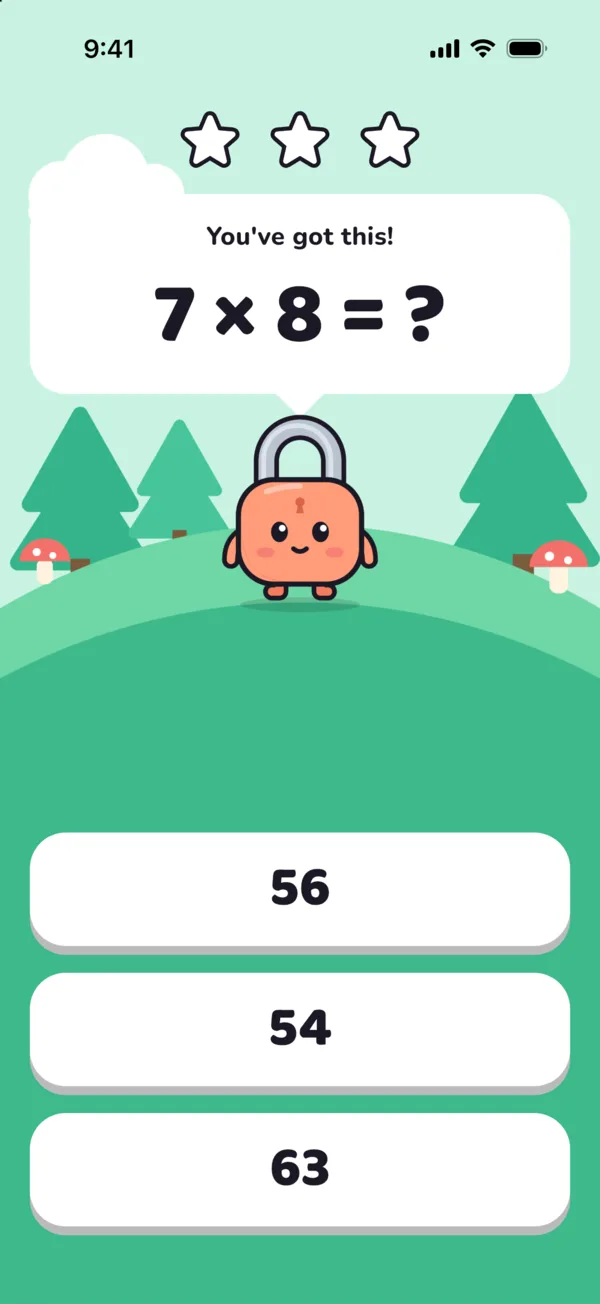
An earned-time approach flips it. Instead of a countdown your kid fights against, the locked app asks for something first. With SmartBlock, that's a short challenge picked for their age: a times table, a flag, a clock. Three right answers in a row and the app opens for the time you set. It runs on the same Screen Time framework, so the lock is just as real.
| Apple Screen Time | SmartBlock | |
|---|---|---|
| Daily app limits | Yes | Play time per solved challenge |
| Bedtime schedule | Yes (Downtime) | Use Apple's Downtime |
| Kid has to learn something to unlock | No | Yes |
| Parent passcode | Yes | Yes (PIN) |
| Cost | Free, built in | Free for one app, Premium for more |
Many parents use both: Downtime for nights, SmartBlock for games and video during the day. Read more in our guide to earned screen time.
Questions parents ask
How much screen time should a kid have?
The American Academy of Pediatrics doesn't set one number for school-age kids. It recommends consistent limits and a family media plan that protects sleep, homework, activity and time together.
Can my kid get around Screen Time?
The common ways are guessing the passcode, using the website instead of the app, or changing the device's date. A strong passcode and website limits close most of them.
Does Screen Time work on iPad too?
Yes. Every step in this guide works the same on iPad.
Do I need my kid's Apple Account in Family Sharing?
No, but it helps. With Family Sharing you manage everything from your own phone and approve "more time" requests remotely.
Sources
- Apple Support: Use Screen Time on your iPhone or iPad
- American Academy of Pediatrics: Family Media Plan