How to set up parental controls on Android
Quick answer: Android's built-in parental controls are in Google Family Link. Start with app limits, a bedtime and a passcode.
Step by step
- Install Google Family Link on your phone.
- Add your kid's Google account (or create one for kids under 13) and sign in on their device.
- Set a daily limit and a bedtime for the device.
- Under App limits, set a limit or Block for specific apps.
- Turn on approval for app downloads in Google Play.
Kids 13 and older can choose to stop supervision on their account. Talk about the rules before you set them up.
Limit specific apps
- Roblox parental controlsspending limits, chat, content maturity and daily time limits
- YouTube parental controlsYouTube Kids, supervised accounts and Restricted Mode
- TikTok parental controlsFamily Pairing, daily limits and Restricted Mode
- Instagram parental controlsTeen Accounts, sleep mode, time limits and supervision
- Snapchat parental controlsFamily Center, contacts, time insights and content controls
- Fortnite parental controlsEpic PIN, chat, purchases and daily time limits
Make screen time earned
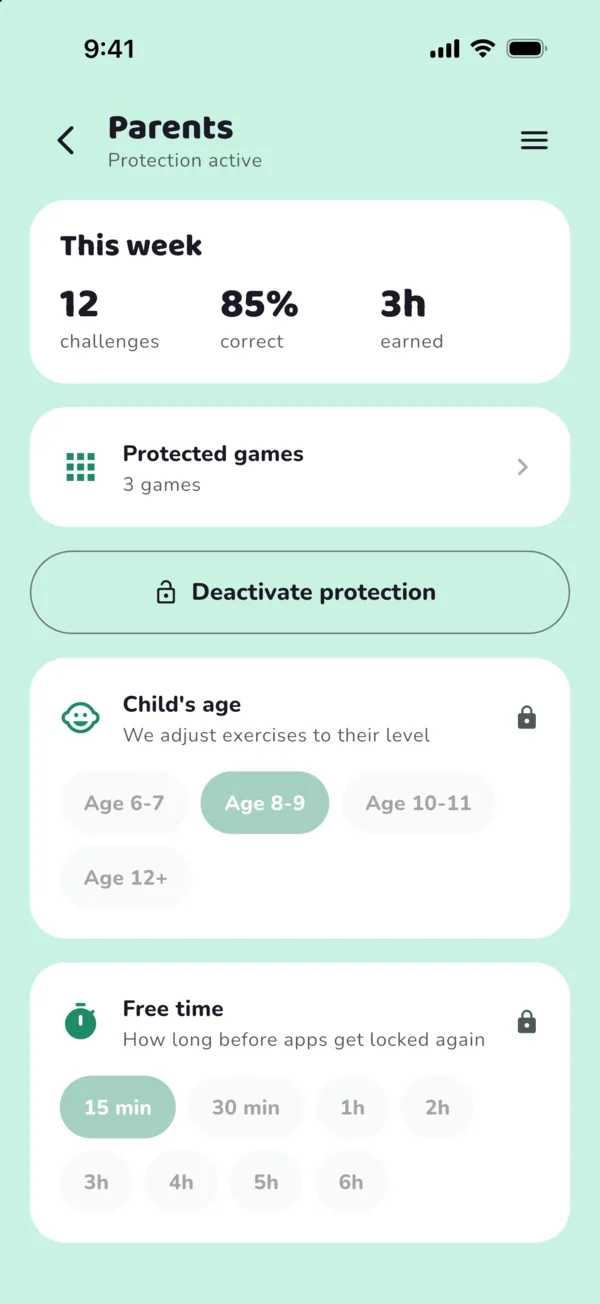
Google Family Link decides how long. SmartBlock decides what it takes: the apps you pick stay locked until your kid answers three quick questions at their level.